Help Center
To ensure you get the most from your experience we've created this library of helpful articles and videos.
If additional support is needed, contact us to ask questions or to schedule a live complimentary support session.
Login Challenges - Error messages are the key!
Login challenges can feel very frustrating when you or your users might not be comfortable with technology. But the error messages built into CondoSites will help you quickly and easily diagnose the issue.
When a user has issues logging in, it is important to get the specific error message they are receiving so that you can help them diagnose the issue. These error messages are very specific and are designed to give you this help. If a user reports a different error message than the six below, then they are most likely trying to login to the wrong site.
IMPORTANT: Disabling a User Account will NOT allow a user to create a new login with the same email address! Do NOT disable a user account to resolve login issues. Instead, resolve the issue through the steps below.
Login Error Messages and Their Meanings...
No error message...
This occurs when the user has their browser's cookies disabled or damaged.
CondoSites needs browser cookies in order to create a login session. If the user has disabled or damaged cookies, then they will be unable to login, and we're unable to create an error message. If cookies are disabled, the user will need to enable them. If cookies are enabled, they may be damaged and the user should clear their browser cookies, and try again. For information on how to check if cookies are enabled, or to clear browser cookies, the user should check their browser's help documentation:
[ Links to clearing cookies on:
Chrome,
Edge,
Firefox,
Safari
]
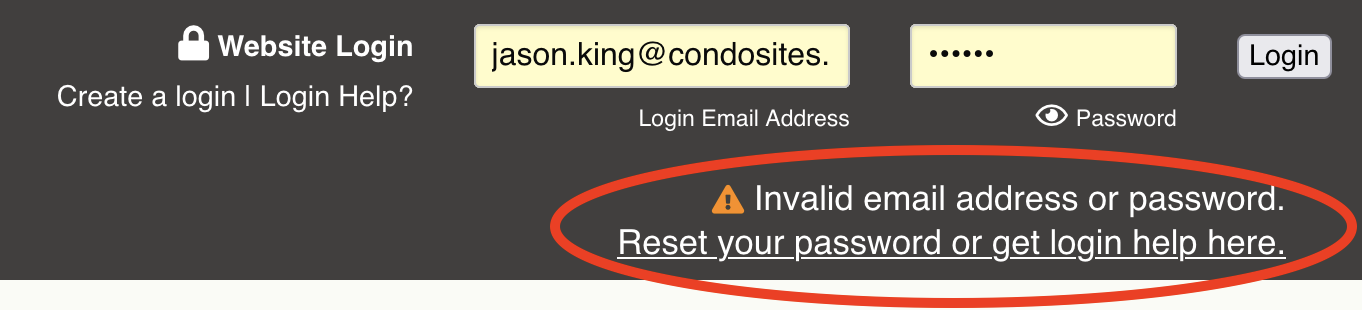
"Invalid email address or password."
This error message indicates that the user is either entering an incorrect email address or password.
When a user encounters this error, navigate to the User Accounts control panel and verify that:
- They actually have a user account. If not, instruct them to click the "Create a login" link and complete the form.
- They have a user account with that specific email address.
- If they have a user account under a different email address, notify them of the correct email address they should be using to login with, or update it to the email address they want to use.
- If their email address has a typo, edit the user account and correct the typo. Be sure to tell the user about any changes you make.
If the above items have been addressed and the user is still receiving the same error message, then the error is due to an incorrect password. Advise the user to click the "Login help?" link and follow the directions to reset their password.
"Your account has not been approved yet."
This error indicates that the user's account has not yet been approved by an administrator.
An administrator needs to navigate to the User Accounts control panel and approve the user. Our help video walks you through this process.
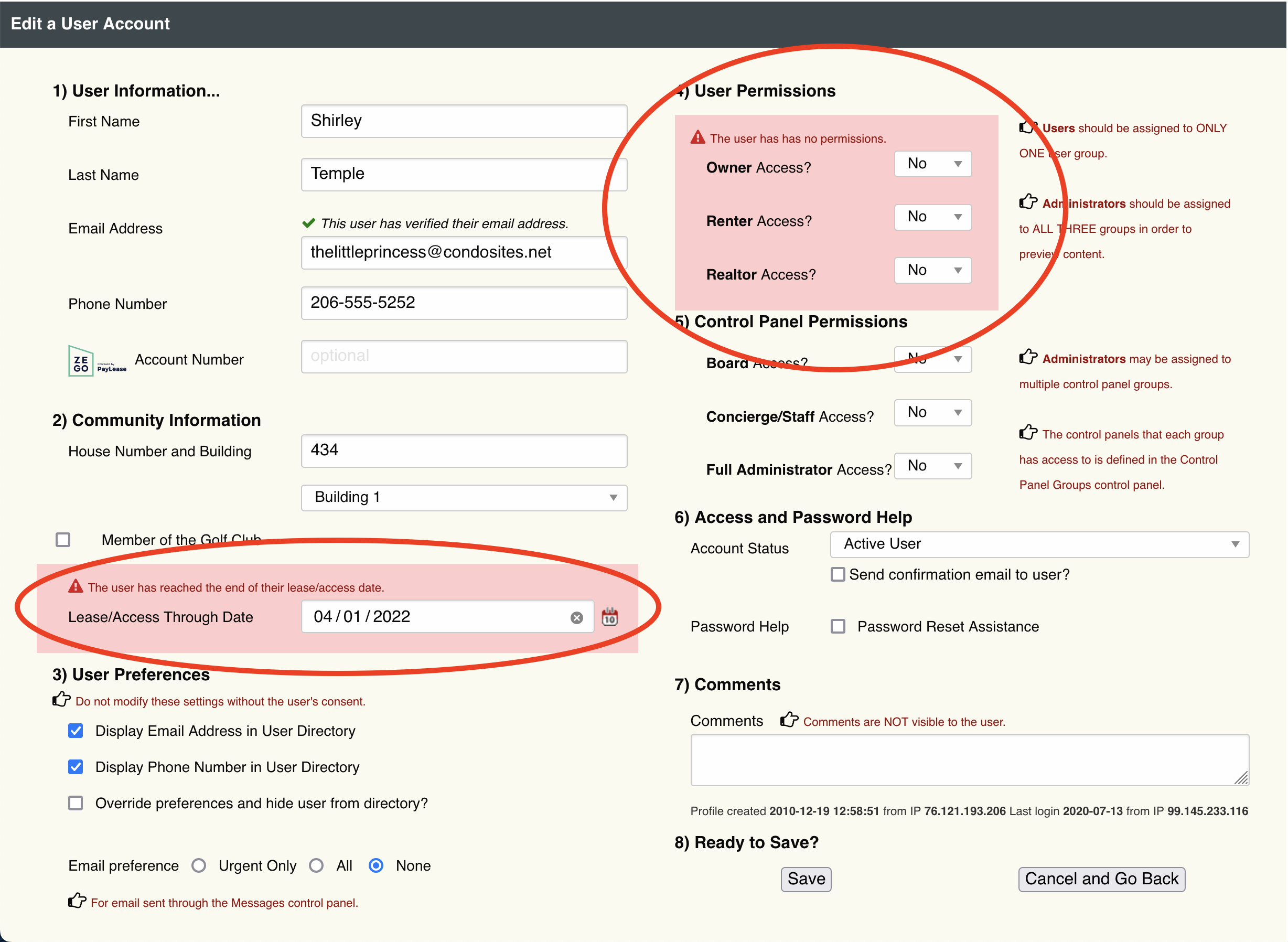
Any additional issues with the user account will be highlighted with a salmon red background on the edit screen of the User Accounts control panel.
"Your account is disabled."
This error indicates that the user's account has been disabled by an administrator.
To restore their access, an administrator needs to navigate to the User Accounts control panel, locate the disabled user account and click the edit button. On the edit screen the Account Status will need to be changed back to Active, and the Lease/Access Through Date will need to be reset, deleted, set to "0000-00-00", or adjusted to a future date. (Different browsers have different options for resetting date fields.)
Any additional issues with the user account will be highlighted with a salmon red background on the edit screen of the User Accounts control panel.
"You have reached the end of your lease/access through date, and your account was suspended."
Renters and users where a Lease/Access Through Date will be automatically suspended when this date is reached.
To restore their access, an administrator needs to navigate to the User Accounts control panel, locate the suspended user account and click the edit button. On the edit screen the Lease/Access Through Date will need to be reset, deleted, set to "0000-00-00", or adjusted to a future date. (Different browsers have different options for resetting date fields.)
Any additional issues with the user account will be highlighted with a salmon red background on the edit screen of the User Accounts control panel.
"Your account is suspended."
This error indicates that the user's account has been manually suspended by an administrator.
To restore their access, an administrator needs to navigate to the User Accounts control panel, locate the suspended user account and click the edit button. On the edit screen the Account Status will need to be changed from Suspended to Active.
Any additional issues with the user account will be highlighted with a salmon red background on the edit screen of the User Accounts control panel.
Tips where you need them...
Salmon red backgrounds on User Account edit screens are designed to alert you to issues that must be resolved before a user can gain access. Once you resolve questions/issues in these fields, users will be able to gain access.